How to Send Your Manager or Label a Live Analytics Dashboard (Without Sharing Your Login)
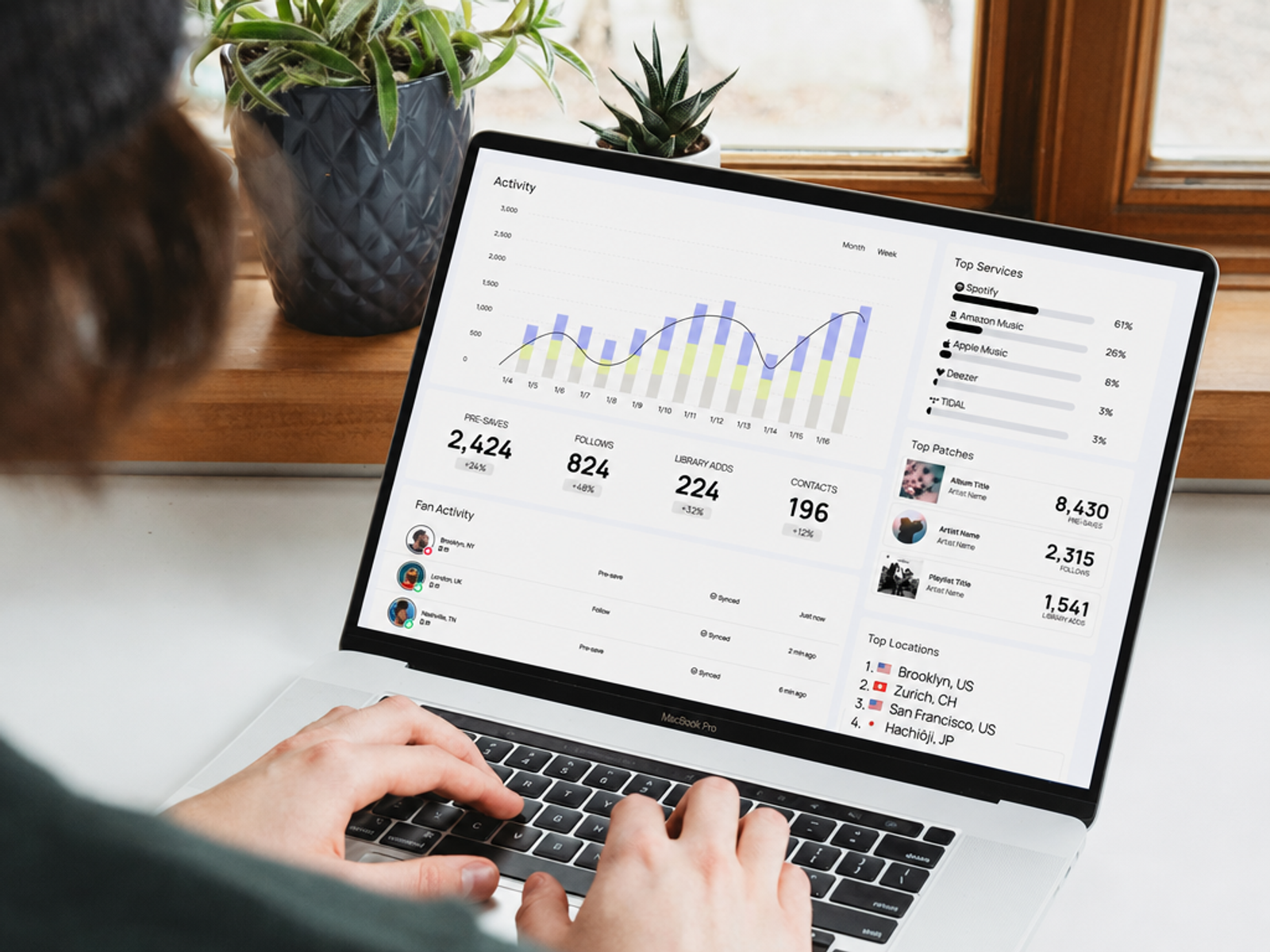
It's Friday and your manager wants "the numbers." So you screenshot three charts, paste them into an email, and by Monday they're out of date. A shared Sonikit dashboard replaces that routine with a live, read-only view that the other person can open without a Sonikit account. This guide covers which sharing method fits which person, the steps for each, and how to confirm nobody sees more than you intended.
What you'll need
- A project with analytics to share. Each project keeps its own analytics dashboard, which is what Audience Insights reports on: streaming actions, where fans are, and how your audience is growing.
- The right plan. Public share links are on Pro and Enterprise. Password protection, invite-only access, and advanced permissions are Enterprise only. Basic doesn't include dashboard sharing.
- The email addresses of anyone you plan to invite by name.
Match the method to the person
Shared dashboards come with two access levels. View-only shows the viewer the dashboard exactly as you shared it. Exploratory also lets them change date ranges and apply available filters. Neither lets anyone edit the dashboard or your data. This breakdown of view-only and exploratory access covers both in more detail. Here is how the pieces fit together.
| Who is looking | Sharing method | Access level | Plan |
|---|---|---|---|
| An artist, or a public audience | Public link | View-only | Pro or Enterprise |
| Your manager, label contact, or analyst | Invite by email | Exploratory | Enterprise |
| A client, or anyone seeing sensitive numbers | Invite by email plus a password | Exploratory or view-only | Enterprise |
Everyone who has a public link can view the dashboard, so treat it as published. Use it for numbers you would be comfortable putting in a press kit.
Share with a public link
A public link is the quickest route, and the only one available on Pro.
- Go to your Sonikit home page.
- Open the project analytics dashboard you want to share.
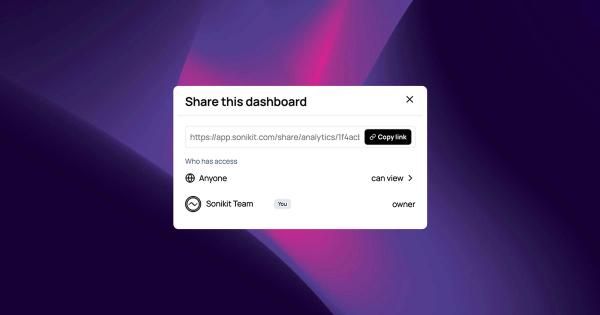
- Click Share.
- Copy the dashboard link.
- Send it to the person.
Invite specific people by email
Invite-only access suits a manager or label contact who will check in every week. Invited viewers don't need a Sonikit account and can only see the dashboards they were invited to.
- Open the dashboard and click Share.
- Enter one or more email addresses.
- Send the invitations. Each viewer receives a secure access link by email.
- Set viewer permissions from the same Share window. Exploratory suits managers, labels, and analysts, while view-only suits artists and public-facing sharing. You can change either later.
Add a password for sensitive reporting
Password protection means a viewer needs the password even if they have the link.
- Open the dashboard and click Share.
- Open Accessibility Settings.
- Turn on password protection and set a password.
- Save your changes.
- Send the password separately from the link, through a different channel, so one leaked email doesn't expose both.
Warning: Use a password or invite-only access for sensitive analytics. If you're on Pro, a public link is your only option, so share only what you'd be fine with anyone seeing.
Check what your viewer sees
Before you send anything, open the link in a private browser window where you're signed out of Sonikit. Success looks like this: the dashboard loads without a login prompt (or with the password prompt, if you set one), the numbers match your own view, and there is no way to edit anything or export data. Shared dashboards are read-only and always show live data, so what you see now is what the viewer will see later.
What viewers can and can't do
Viewers don't need a Sonikit account, whichever method you use. They can't edit the dashboard, change your data, or export it, and invited viewers can only see the dashboards they were invited to. If you manage several projects, each dashboard has its own sharing settings, so sharing one doesn't share another. Changes apply immediately, so removing a viewer or disabling a link ends their access the moment you save.
A worked example
Say you manage two artists, each with their own project, and one label contact wants a weekly look at both. If your current screenshot report takes 15 minutes per artist, that is 30 minutes a week and about 26 hours over a year. These numbers are an illustration, not Sonikit data.
Each dashboard has its own sharing settings, so you set up two:
- Artist A's dashboard: a public view-only link for the artist and the band to bookmark.
- Artist B's dashboard: the same public link for the artist, plus an invite for the label contact with exploratory access so they can set their own date ranges.
On Enterprise you could put a password on either one. Setup is a one-time job per dashboard, and after that the label contact sees current numbers every time they open the link instead of waiting for Friday's email.
Turn sharing off when the campaign ends
Sharing doesn't expire on its own, so end it deliberately. Open Share on the dashboard, disable the public link, remove any invited viewers, and save. Access ends immediately for everyone outside your account. Turn sharing off once reporting is finished, and put it on the same checklist as closing out the campaign.
Do this next
Open the dashboard for the release you're working on now and click Share to see which options your plan gives you. The dashboard sharing plans and FAQs page lists what each plan includes, and the Audience Insights guide explains which of those numbers are worth sending. If you're new to the feature, the announcement post for shared analytics dashboards covers what launched.