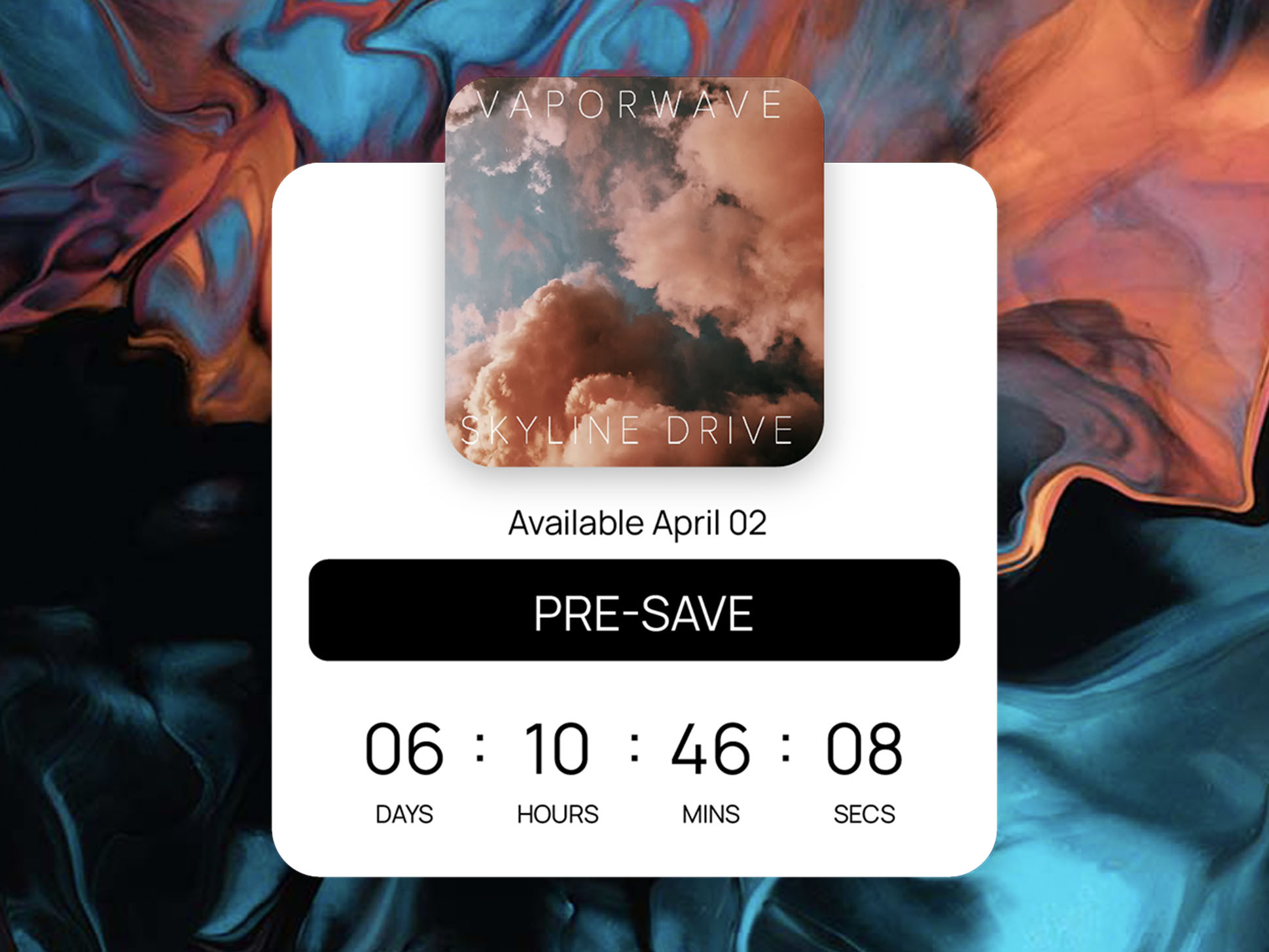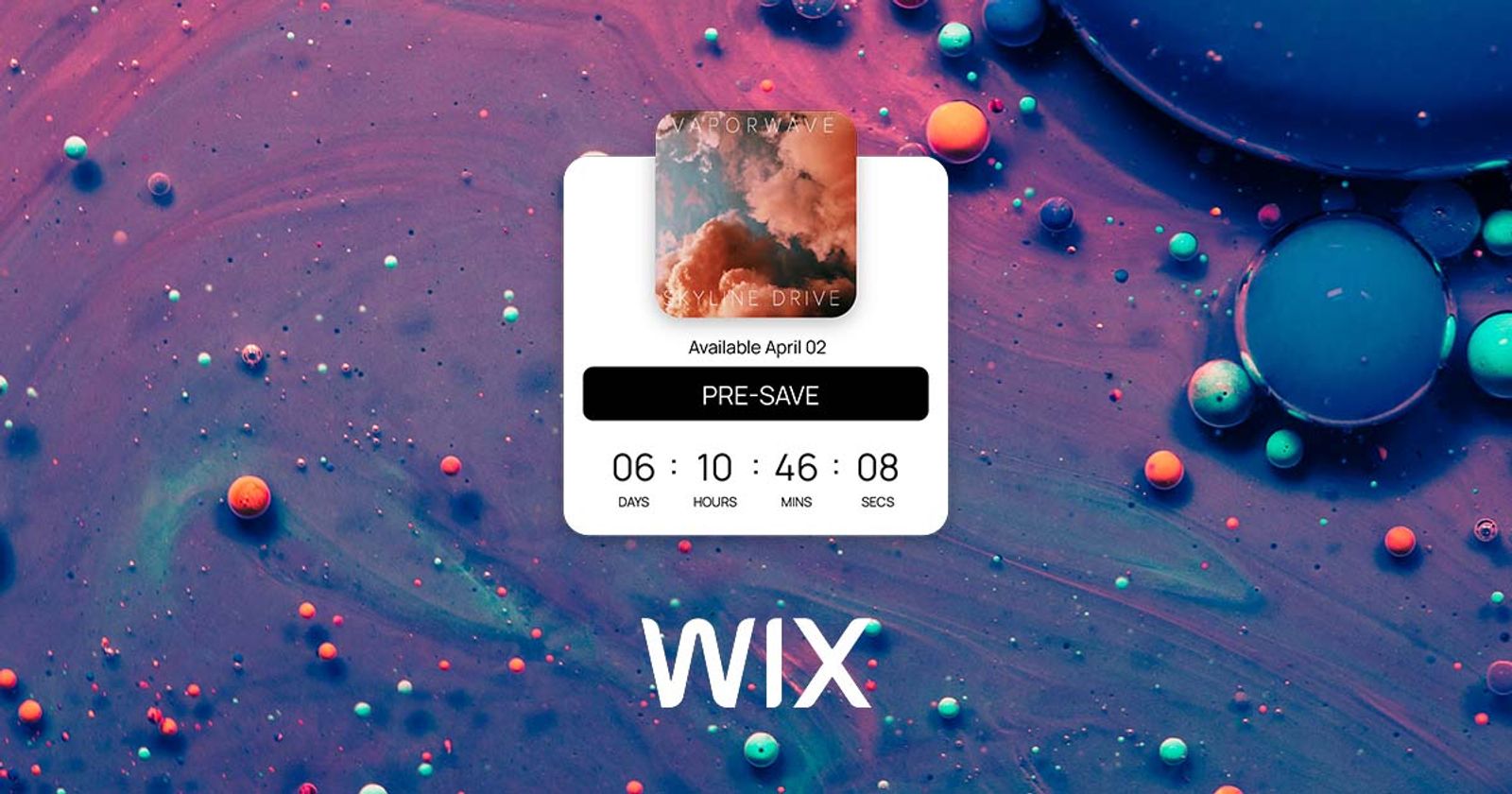
How to Add a Spotify Pre-Save to Your Wix Website
If you're an artist preparing to launch a new release, Spotify pre-saves are an essential part of your strategy. They let fans save your upcoming track to their Spotify library ahead of time, so it's waiting for them the moment it drops. More pre-saves typically mean stronger day-one numbers, better placement in algorithms, and ultimately — more listeners.
But the typical pre-save experience sends fans to an external landing page. With Sonikit, you can embed the pre-save directly into your Wix website, keeping the experience seamless and on-brand.
Why Use Sonikit for Your Pre-Saves?
Sonikit helps you turn traffic into action right on your site:
- Keep fans on your own domain — no redirects
- Collect email addresses and phone numbers from superfans
- Add multiple streaming services (Spotify, Apple Music, SoundCloud, etc.)
- Enable "NextSave" to let fans opt into all future releases (Pro & Enterprise only)
Let’s walk through the full setup — from creating your embed in Sonikit to publishing it on your Wix page.
🎛 Step 1: Create a Pre-Save Embed in Sonikit
Start by generating your custom pre-save embed.
- Log in to your Sonikit dashboard
- Go to the "Embeds" section
- Click "Create Embed"
- Choose "Pre-save" from the list of actions
- Enter your release information:
- Add your release name
- Set the release date and time
- Choose between a global or local release time (so fans see the right time wherever they are)
- Turn on NextSave if you’d like (available on Pro/Enterprise plans)
- Add your streaming platform links:
- Paste in your album URL to auto-populate details (if available)
- Otherwise, use manual entry and choose platforms like Spotify, Apple Music, and Amazon Music
- Click Save to finalize the embed
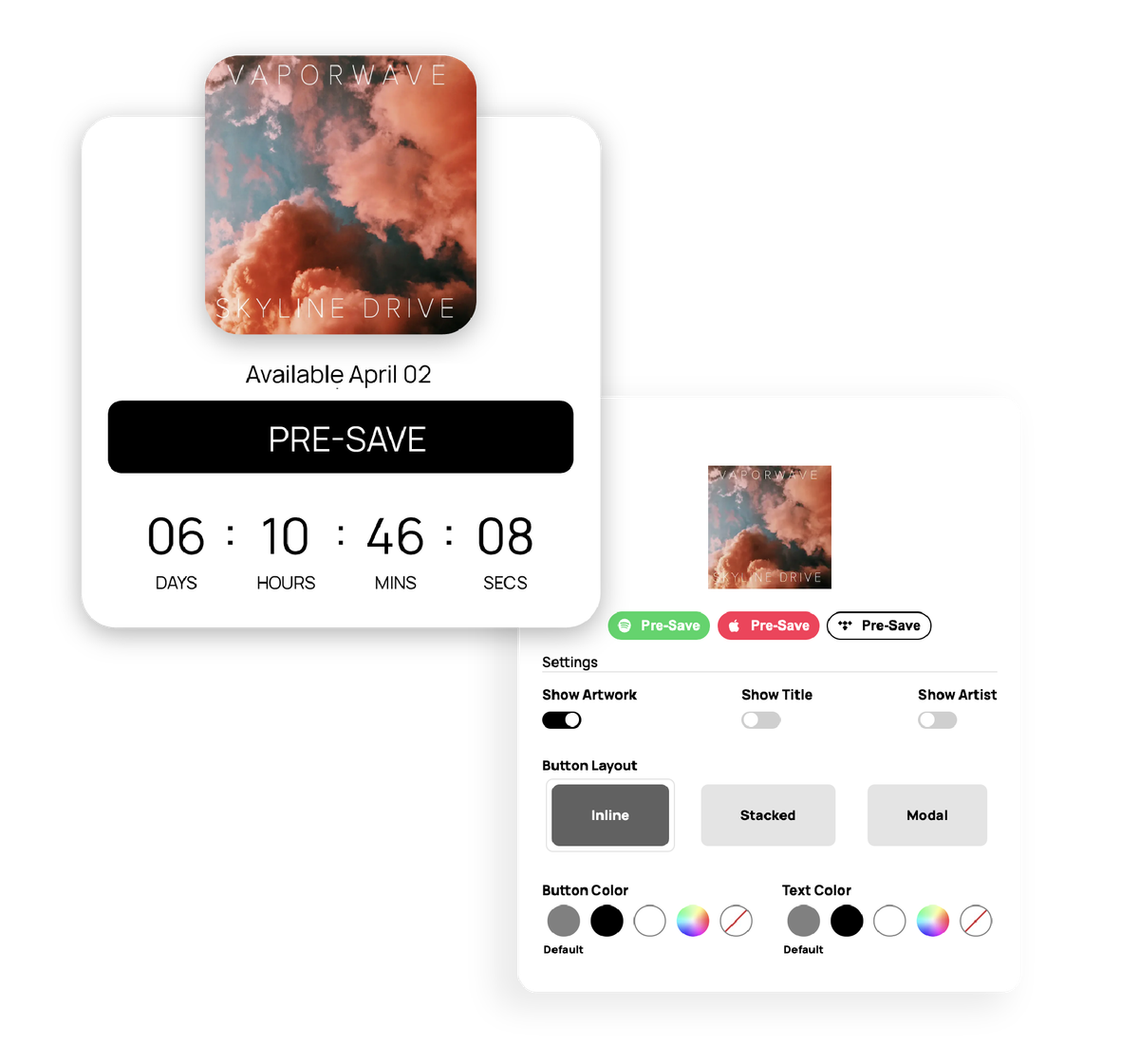
- If you'd like to customize the design and layout of your embed, click the Gear icon on the top right corner of your new embed to adjust the embeds settings
- Click the code icon on your embed and copy the code snippet (this will be a
<div>element)
🧩 Step 2: Add the Embed to Your Wix Website
Now it’s time to place your embed on your Wix site. This includes two steps: adding the Sonikit SDK script and pasting the actual embed code.
Part 1: Add the Sonikit SDK to Your Site
- Log in to your Wix Dashboard and open the Wix Editor for your site.
- Navigate to the page where you want to add your Sonikit embed
- In the left panel, click “+ Add”.
- Select Embed → Embed Code.
- Drag the Embed HTML block onto your page.
- Double click the Embed block or click “Enter Code”.
- Paste both the Sonikit script and your embed div into the code editor:
<div class="sonikit-patch" data-id="697e88d5f569d1b5175d1017"></div><script src="https://js.sonikit.com/v1/embed.js?key=67d2e9f5a525699f11b9ac80" type="module"></script>
- Click "Apply" to save the embed code.
- Resize and reposition the embed block as needed in the editor.
- Click Publish to make your site live. *Note: You may need to refresh the editor after publishing to view the most recent changes.
📍 Where Should You Place Your Pre-Save?
For maximum impact, place your Sonikit pre-save:
- Right on your homepage, near the top
- On a dedicated "New Release" or "Pre-Save Now" page
- In any fan-facing funnel linked from your social profiles
Combine it with a clear call-to-action like:
"Be the first to hear it. Pre-save now."
📈Tracking & Results
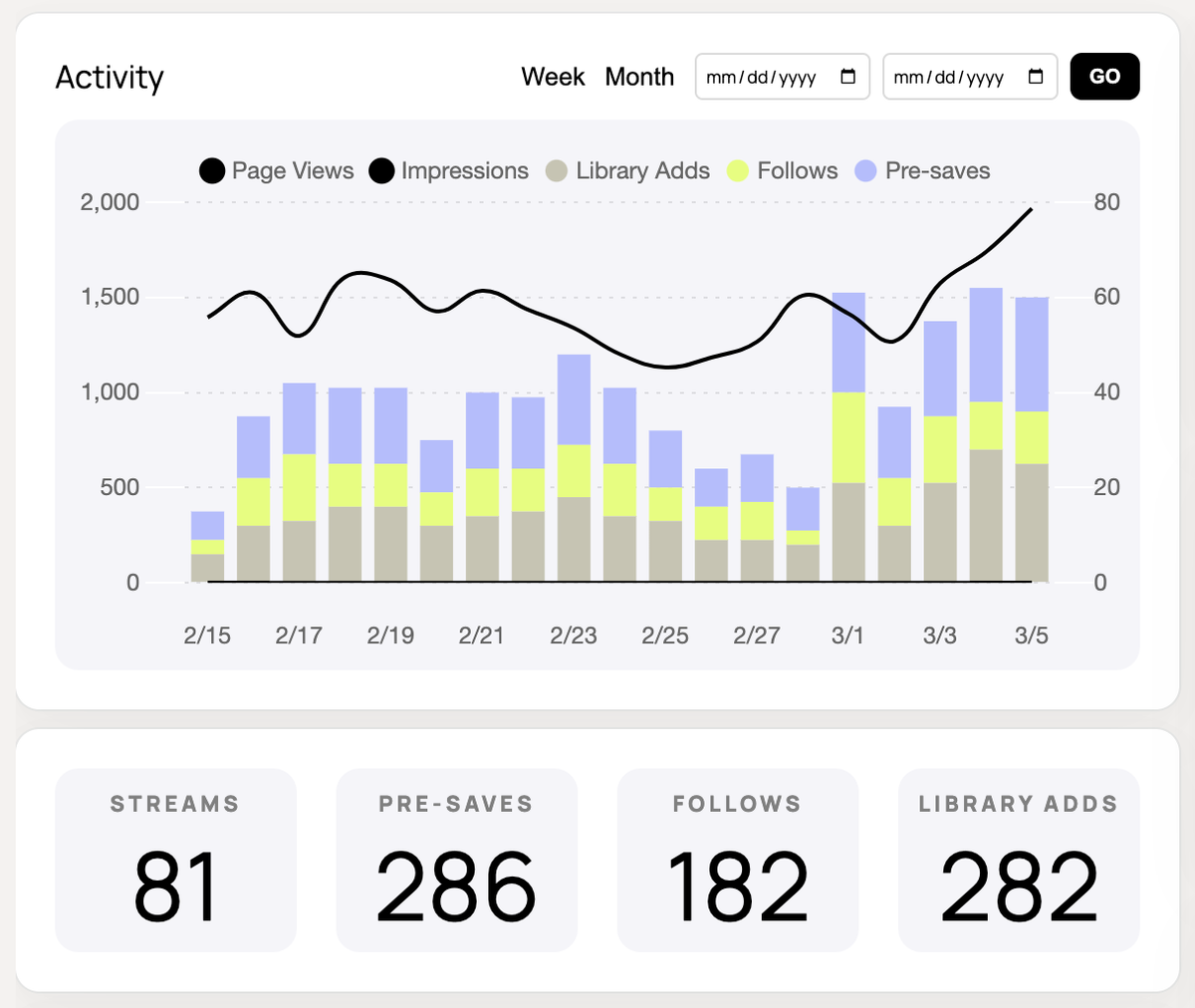
Not only can the Sonikit pre-save be embedded directly into your website, but it also automatically tracks detailed analytics about your fan engagement. Visit your Sonikit dashboard to see how many pre-saves your embed has generated, which services fans used, and detailed fan demographics.
You're All Set
Embedding your Spotify pre-save with Sonikit keeps your fans on your site and gives you powerful tools to grow your audience. Now that your embed is live on Wix, you’re ready to start collecting pre-saves — and fan data — in one seamless step.
Don't have a Sonikit account yet? Now's a great time to set up a free trial and test out different pre-save options to see which is the best for you. Create a free account and start collecting pre-saves in minutes!


Keep reading
All posts
How to Build a 3-Step Action Flow: SMS Sign-Up to Pre-Save and Follow

New Project or New Landing Page? How to Structure Sonikit for Multiple Releases, Artists, or Tours